
If you're getting more candidate emails than you'd like, the good news is that 1Way Interview gives you two different ways to control notifications. Depending on whether you want a blanket change across every screening test or a targeted change for one specific role, one of these two settings will handle it. This guide covers both.
Option 1: Turn Off Notification Types Across Your Whole Account
Use this when you want to disable an entire category of candidate emails. For example, you never want to receive the 'Candidate Hired' status email because your team manages offers elsewhere. Or you want to silence 'Candidate TBC' alerts because you review the dashboard manually every morning.
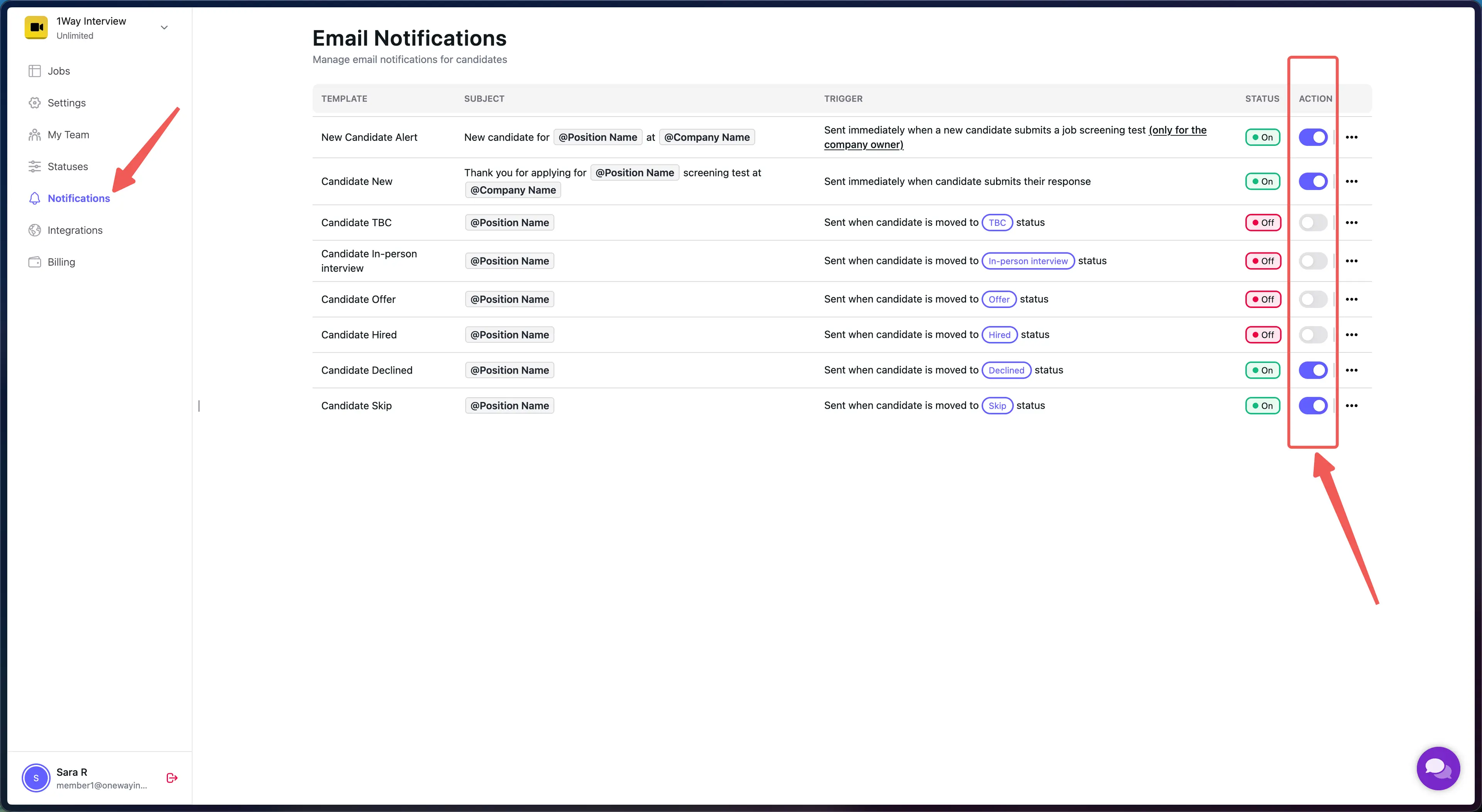
From the left sidebar of your dashboard, click Notifications. You'll see a table of every candidate email template the system can send. Each one has a simple on/off toggle in the Action column. Flip any toggle to disable that specific template for your entire company. Turn it back on whenever you want.
A few common patterns we see teams use:
- New Candidate Alert ON: Owner gets notified the moment a new candidate submits. Most teams keep this on.
- Candidate New ON: Candidate receives a thank-you confirmation. Keep on for a good candidate experience.
- Candidate TBC, In-person interview, Offer, and Hired OFF: Many teams manage these status transitions in their ATS or email manually, so they keep these off to avoid duplicate emails.
- Candidate Declined and Skip ON: Automates the rejection email so you never forget to close the loop with candidates.
Remember: changes here apply to every screening test in your account. If you only want to change notifications for one specific role, use Option 2 below instead.
Option 2: Choose Recipients Per Screening Test
Use this when different team members should receive emails for different screening tests. A common example. Your Sales Manager should get 'New Candidate' alerts for sales roles, and your Engineering Manager should get them for engineering roles, not everyone drowning in everything.
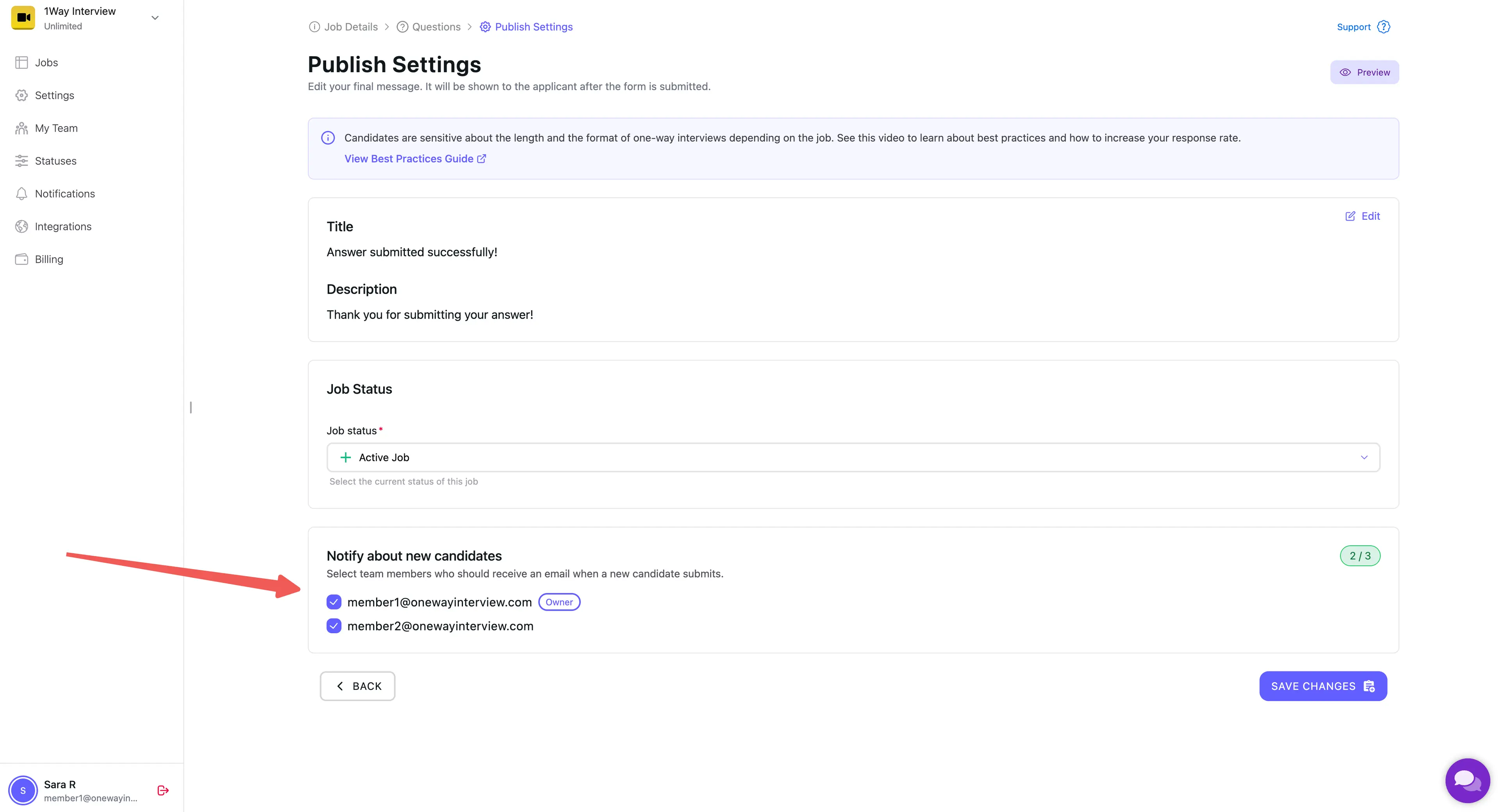
Open the screening test you want to adjust, click Edit, and then advance to the Publish Settings step (the third step in the editor). Scroll to the bottom and you'll see the Notify about new candidates card. Each team member's email is listed with a checkbox. Tick the ones who should get candidate emails for this specific screening test, and untick the ones who shouldn't.
A few things to know:
- You can select up to three recipients per screening test. This keeps notifications focused and avoids accidentally spamming your whole team for every applicant.
- The list is drawn from your company's team members. If someone you want to notify isn't listed, invite them first via My Team.
- At least one recipient must be selected when notifications are active for that screening test. The system enforces this so candidate alerts never go to an empty list.
- Click Save Changes at the bottom of the step to apply the update. The next candidate who applies will only notify the ticked team members.
Which Option Should I Use?
A quick decision guide:
- "I want to disable an entire notification type across every screening test." Use Option 1 (Notifications page).
- "I want different people to get notifications for different screening tests." Use Option 2 (Publish Settings).
- "One specific screening test is generating far too many applications and I want to mute it without changing the recipients or turning off notifications for other roles." Use Option 2 and uncheck all recipients for just that screening test.
- "I want to change who is the account owner or who receives 'New Candidate Alert'." Option 1 handles the template. Option 2 handles the recipients.
Your Next Steps
Candidate email volume is one of the easier things to fix once you know where to look. Start with Option 1 if you want a clean sweep. Turn off the templates you don't need and leave the rest. Then use Option 2 on your busiest screening tests to narrow down exactly who gets alerted when a new applicant submits.
If you need to add more team members before you can assign them as recipients, see our guide on collaborating with your recruitment team. And if you ever want to restore a notification you turned off, the same toggles and checkboxes flip straight back on. Nothing you change here is destructive.